
Tech-Note – Data Collection over RS232
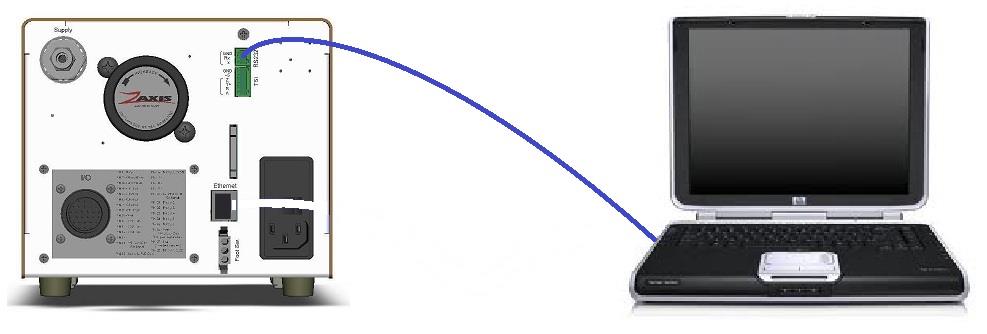
The test data from an Isaac can be collected by a computer via the Ethernet or RS232 connections on the back of the Isaac.
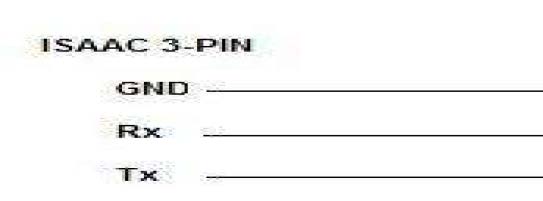
To collect data on a laptop you will need an RS232 cable (see diagram) and a terminal emulation program such as HyperTerminal.
Verify that the correct selections have been made in the ‘Serial Port’ menu for the type of data you wish to collect (Results, 0.1sec data, etc.) Also verify that ‘Output results’ in the ‘PROG’ menu have the RS232 box selected for every test you wish to collect data.
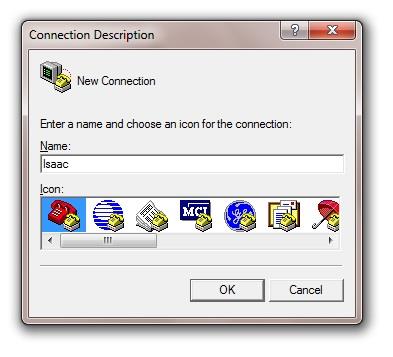
Starting HyperTerminal, the opening screen asks for a connection description, this description can be saved for future use to avoid going through all the configurations. We have chosen to call our example ‘Isaac’.
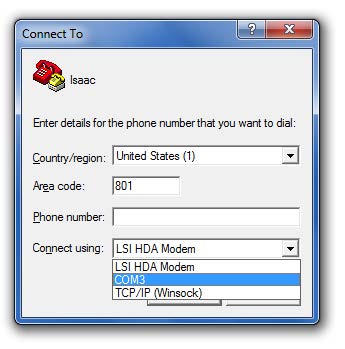
With a connection description made the next screen to appear is Connect To. Hyper terminal has multiple ways of communicating. In the ‘Connect using’ pull down menu choose COM3 (or the specific COM port you are using).
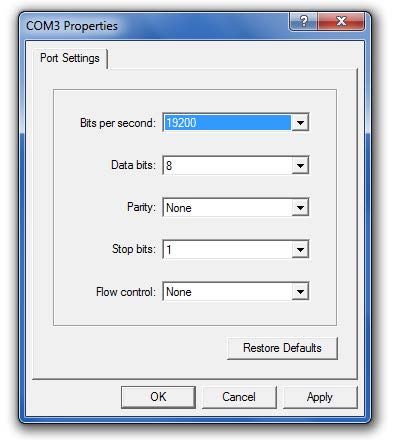
The properties screen will allow for baud rate changes, the default setting for the Isaac and setup are shown above.
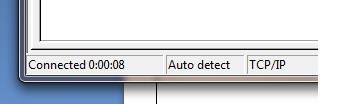
Pressing OK will initiate the connection from HyperTerminal to the Isaac. A successful connection will be shown by the connected counter in the lower left corner of the HyperTerminal screen.
The easiest way to verify communication is to start and abort a test. The data string will display after the abort. A typical string is shown below.

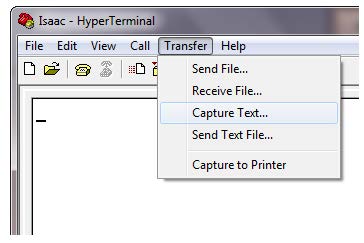
To gather multiple tests automatically, HyperTerminal has a feature to collect the text and save it to a file. Select ‘Transfer’ then ‘Capture Text…’
HyperTerminal will now ask for a filename for the data. Remember to make sure the extension is .TXT
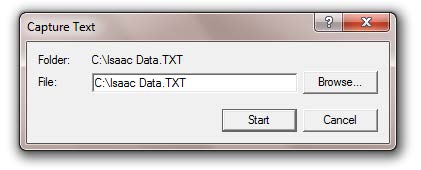
With a file name chosen, press start to begin the collection. Any data sent from the Isaac will be recorded under the filename that was specified, until you return to the ‘Transfer’ and ‘Capture Text..’ and press stop.
Leak Rate Calculator
Volume : cm3
Pressure: PSI
Time: seconds
Atmospheric pressure: PSI
Leak Rate: SCCM